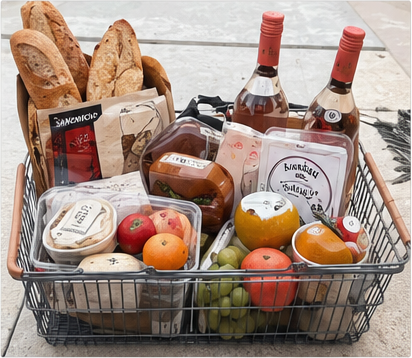
Turn any photo into a free pixel art color by number template in under a minute. Upload an image, choose your grid size and palette, then color online or download a printable PDF.
To turn a photo into a color by number, upload your image to a converter, pick a grid size and color count, then generate the numbered template. Our free tool does the color simplification and numbering automatically — you just color or print the result.
What is a photo to color by number template?
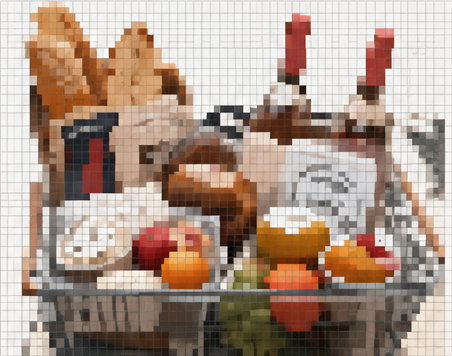
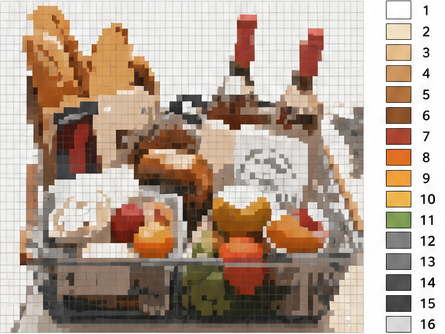
A photo to color by number template turns an ordinary image into a grid of numbered cells. Each number maps to one color in a small palette, so you recreate the photo one square at a time — paint by numbers, but for pixels. Three things happen automatically: the image is downsampled to a pixel grid, its colors are simplified into a manageable palette, and every cell is labeled with the number of its matching color.
Our free converter handles all three steps instantly in your browser. You choose the grid size and color count, preview the numbered template, then color it online or download a printable PDF with a full color legend — no sign-up, no software, no cost.
How to turn a photo into a color by number, step by step
Follow these five steps and you will have a printable color by number template in a few minutes.
1
Pick a clear photo
Choose a sharp, well-lit image with a single subject. Portraits, pets, and simple scenes convert into the cleanest pixel art color by number templates.
Well-lit photos with one main subject work best
Portraits, pets, flowers, and simple scenes convert cleanly
Avoid busy backgrounds — they blend into extra colors
Photos around 800–2000 pixels wide keep the most useful detail
2
Upload it to the free converter
Open the converter and upload a JPG, PNG, or WebP file. The tool instantly converts your photo into a pixel grid you can edit.
JPG, PNG, and WebP files are supported
Everything runs in your browser — nothing to install
You can re-upload a new photo any time and start over
Pick a grid from 16×16 to 64×64 and limit the palette to 8–24 colors. Larger grids keep more detail; fewer colors make coloring faster.
16×16 to 24×24: quick, bold, kid-friendly projects
32×32 to 48×48: the sweet spot for most photos
64×64 to 120×120: fine detail for serious pixel art
8–12 colors keep it simple; 24–64 colors preserve photo detail
4
Review the numbered template
The preview shows every pixel with its color number and a matching legend. Swap colors or tweak details until the design looks right.
Every pixel shows its color number with a matching legend
Swap individual palette colors to fine-tune the look
Regenerate instantly when you change the grid size or color count
5
Color online or print the PDF
Color right in your browser, or download a printable PDF with the numbered grid and a full color legend for offline coloring.
Color directly in your browser with the online canvas
Download an A4 or letter-size PDF with numbered grid and legend
Save your progress locally and come back later
Which grid size and color count should I use?
Bigger grids keep more photo detail but take longer to color and need more colors. Smaller grids finish fast and stay bold. Use the table below as a starting point — you can regenerate any template in seconds until it looks right.
Grid size
Best for
Suggested colors
16×16
Quick wins and young kids
4–8
24×24
Simple, bold beginner projects
6–12
32×32
Most photos — the all-rounder
8–16
48×48
Faces and pets with good detail
12–24
64×64
Serious pixel art projects
16–32
96×96
Fine pixel art for large prints
24–48
120×120
Maximum detail, long projects
32–64
Tips for the best color by number results
Use high-contrast photos
Clear subject separation means fewer blended colors and a cleaner final design.
Start with 32×32 and 12 colors
The sweet spot for most photos — detailed enough to recognize, simple enough to finish.
Keep the palette organized
The legend sorts colors from light to dark, so matching numbers to paint pots is easy.
Print at 100% scale
Choose “Actual Size” in your printer settings so every square lines up with the legend.
Crop before you convert
Trimming empty space around the subject gives more pixels to the part that matters.
Match colors to your markers
If you use a specific marker or crayon set, pick a palette with similar tones so the numbers line up with what you own.
Photos that convert best
Close-up portraits and selfies
Pets and animals with clear outlines
Flowers, fruit, and simple objects
Cartoon characters and logos
Landscapes with a strong foreground
Photos that are trickier
Group photos with many small faces
Low-light or blurry shots
Very busy patterns, text, foliage, or crowds
Huge panoramas with tiny subjects
Gradients that fade into similar tones
Common color by number mistakes to avoid
Choosing a grid that is too small
A 16×16 grid makes faces and details unrecognizable. Go 32×32 or higher for anything with a face.
Using too many colors
64 colors sound impressive, but 8–24 colors are far easier to finish. You can always regenerate with fewer.
Ignoring the light source
Strong shadows and highlights create extra palette entries. Flat, even lighting converts the cleanest.
Forgetting to check the legend
Before printing, confirm every color in the legend is one you already have or can easily buy.
Frequently asked questions
Is it free to turn a photo into a color by number?
Yes. Our photo to color by number converter is completely free — no sign-up, no payment, and no download required. You can upload photos, adjust grid size and colors, and download printable PDF templates at no cost.
What kind of photos work best for color by number?
Sharp, well-lit photos with one clear subject work best. Portraits, pets, flowers, and simple scenes convert cleanly. Busy backgrounds and low-contrast photos need more colors to stay recognizable.
What grid size should I choose?
A 24×24 or 32×32 grid works well for most photos. Use 16×16 for a quick, easy project, or 48×48 and 64×64 for detailed artwork with finer pixels.
How many colors should a color by number template have?
Between 8 and 24 colors is ideal. Fewer colors are easier to color and better for beginners and kids; more colors preserve photo detail but take longer to complete.
Can I print the color by number template?
Yes. Every template includes a printable PDF with the numbered pixel grid and a color legend, formatted for standard letter-size paper.
Do I need to install an app to convert a photo?
No. Everything runs in your web browser — there is nothing to install. Upload a photo, generate the template, and download the PDF right from the page.
What is the best photo size or resolution to upload?
Any JPG, PNG, or WebP works. Photos between 800 and 2000 pixels on the longest side give the best balance of detail and file size. The converter resizes your image to the chosen grid automatically.
Can I color the template online instead of printing it?
Yes. After generating a template, open the online color by number canvas, pick a number, and tap cells to fill them. Your progress is saved in your browser.
What file formats can I upload?
The converter accepts JPG, PNG, and WebP images. Most phone and camera photos work directly without any editing.
Can I use the generated templates for classes or personal projects?
Yes. Generated templates are free to use for personal, classroom, and hobby projects. No sign-up or attribution required.
Ready to make your own color by number?
Upload a photo, pick your settings, and download a printable PDF with a numbered grid and color legend — free and in under a minute.